
Live chat and direct messages
Use channels and direct messages, message the AI host, and learn how reporting, deleting and blocking work.
Chat has channels that every member can read and write in, and direct messages (DMs) between two members. This article covers both, how to message the AI host, and how reporting, deleting and blocking work.
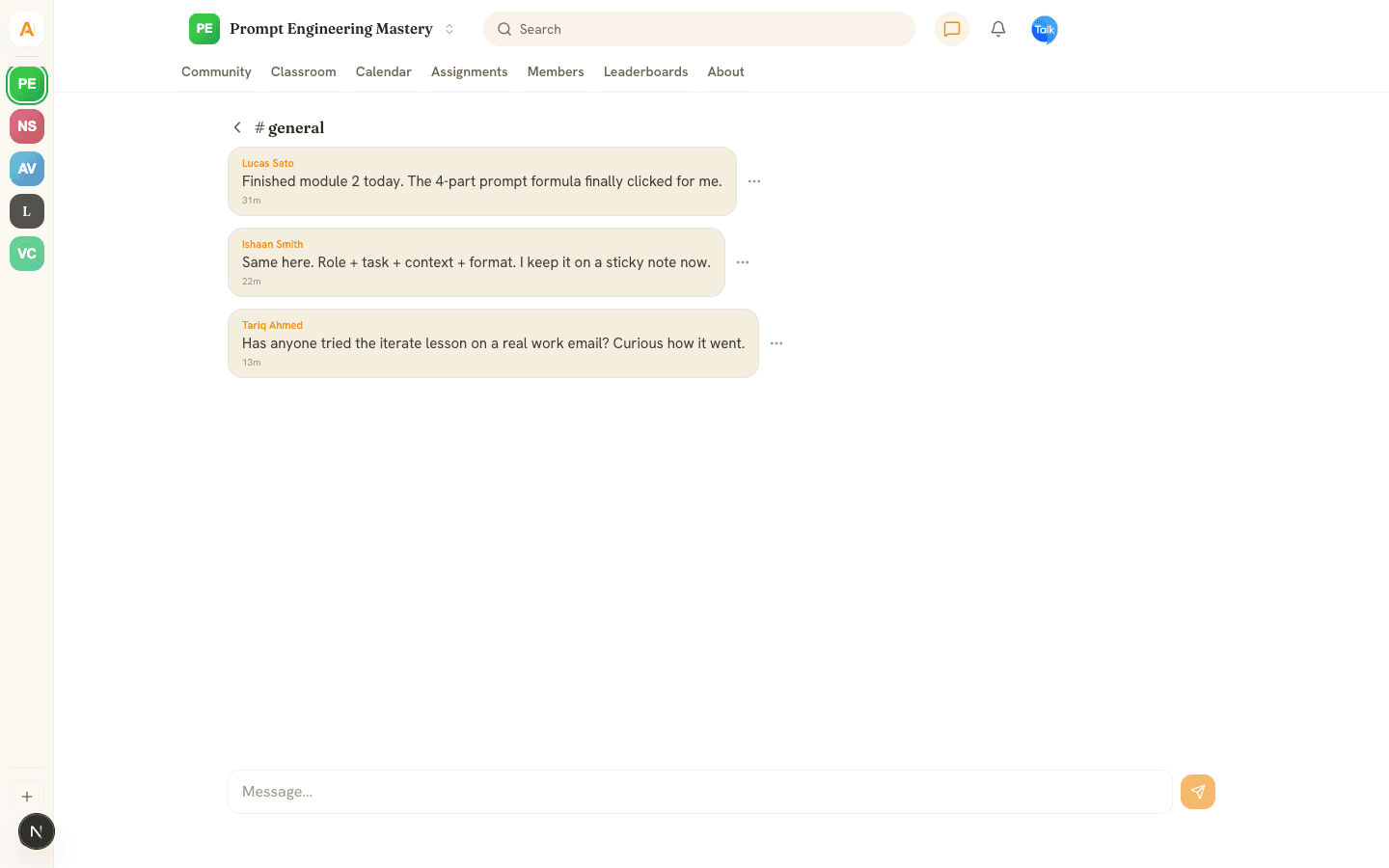
Open Chat
Click the speech-bubble icon at the top right, named Chat & DMs. A number on it counts your unread DMs. The Chat page lists the AI host shortcut when it is on, then Channels and Direct messages.
Channels
Click a channel such as general, type in Message… and press Enter. Messages arrive live, and every member can read and write in every channel. A community made with Create your community starts with one channel called general. The web app has no button to add more.
Direct messages
- Under Direct messages, click New and choose a member. The list shows up to 200 members.
- Type your message and press Enter.
- To pick the conversation up later, click the person's name under Direct messages.
You can message anyone in your community except yourself. If either of you has blocked the other, the message is refused. If the person is not in Chat, they get a notification instead, at most one every 10 minutes from the same sender.
Message the AI host
Click Ask with the host's name, pinned at the top of Chat or under the composer on the Community tab. A DM opens, and the host usually replies within seconds using your community's AI Brain and courses. Owners can hide this shortcut with the Community chat agent switch in the AI Agent studio.
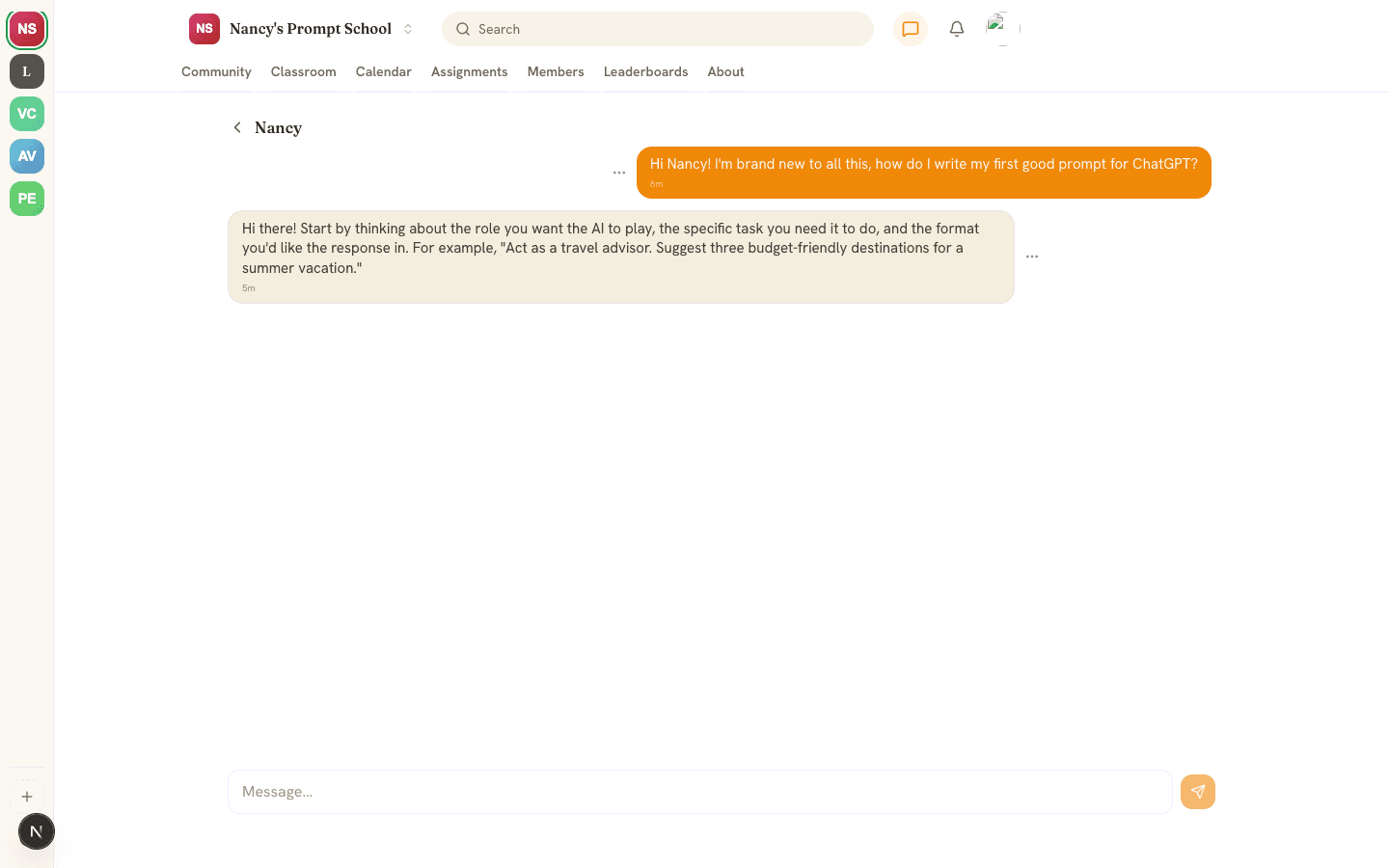
Each member can get 10 host replies a minute and 50 a day. If that limit or your owner's AI credits run out, the host answers once that it cannot reply right now. See Your AI host: Brain and Agent studio.
Limits
- A message can hold up to 4,000 characters.
- You can send 20 messages every 10 seconds.
- You can send up to 10 reports a minute.
Report, delete and block
- Report: click the ... beside someone else's message and choose Report. Pick Spam, Harassment or bullying, Inappropriate content or Something else. You cannot report your own messages.
- Delete: use ... then Delete and confirm. You can delete your own messages. In a channel, moderators, admins and the owner can also delete messages from people below their role. In a DM, only the sender can delete. A deleted message disappears for everyone. It is hidden, not erased, so moderators can still review a report about it.
- Block: open a member's profile from a leaderboard and choose Block. Neither of you can message the other, you stop seeing their messages and posts, and they cannot notify you. Choose Unblock to undo it.
A report does not hide the message. Owners, admins and moderators are notified of the first report on it, and they review it under Manage, Reported content on the web or in the mobile app, where they can keep, hide or delete it. Reporters stay anonymous to staff, and staff see a DM only if someone in it reports it. See Members, roles and moderation.
Frequently asked
Can I edit a message?
Who can read my DMs?
Can I add channels?
Why was my message not sent?
Related articles
Feed, spaces and posts
Post, comment and react in the community feed, organize it with categories, and pin, delete and report content.
Your AI host: Brain and Agent studio
Teach your AI host with AI Brain, shape its personality in the AI Agent studio, and see what it does and what it costs.
Members, roles and moderation
How people join your community, what each role can do, and how to remove, ban, report, hide and block.